 Orisod
How scanned documents become disorganized
Automatic document feeders can pull sheets out of sequence or include a separator page. When pages are photographed individually, one may be duplicated or omitted. Review the complete thumbnail grid before editing; reordering can fix misplaced pages, but it cannot recover a page that was never captured.
Reordering pages
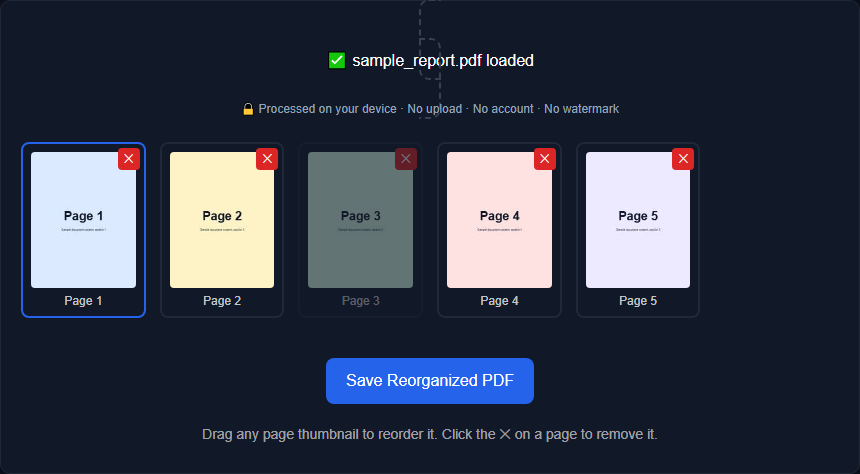
Reordering changes the sequence without intentionally adding or removing pages. In a thumbnail grid, drag each page to its intended position and then check the sequence from beginning to end. Thumbnails are especially helpful when the printed page numbers do not match the PDF's current order.
Deleting pages
Deleting excludes selected pages from the new file. Later pages move forward in the PDF's sequence, but numbers printed inside the pages do not change. Save the result as a new copy until you have confirmed that no required page was removed.
Prefer typing page numbers instead of clicking thumbnails?
The visual, drag-and-drop approach above is the right call when you need to see every page to know what you're doing, but on a long document where you already know exactly which pages need to go (say, "delete pages 40 through 52 of a 200-page report"), clicking through dozens of thumbnails is slower than it needs to be. For that case, Delete PDF Pages skips the thumbnail grid entirely: type the page numbers or ranges you want gone (like "2, 4, 7-9") and it shows a live count of how many pages will be removed before you commit. Same underlying result as dragging pages to the trash in the visual organizer, faster when you're working from a page list instead of eyeballing content.
Reorder and remove pages in one review
These two operations often need to happen together on the same document: a scan might have both a stray blank page to remove and a couple of pages out of sequence to fix. A good page organizer handles this in a single pass: you can delete what doesn't belong and drag the rest into the right order in the same visual view, rather than treating them as two completely separate steps that each require re-uploading the file.
Check the sequence before sharing the file
Incorrect order can change how instructions, signatures, exhibits, or supporting pages are interpreted. For contracts, applications, and filings, compare the finished PDF with the required checklist or original document. Page organization is only one acceptance requirement.
What the operation does and does not change
The intended change is structural: the order and number of pages. A tool can preserve the existing page content without rendering it again, although the PDF container is rewritten when the new file is saved. Printed page numbers, internal references, bookmarks, links, form behavior, and digital signatures may not follow the new sequence automatically, so inspect them when the document contains those features.
Example: repairing a scanned application
You scan a 12-page rental application, and the scanner's feeder mis-fed twice: a blank separator sheet ended up as page 6, and pages 9 and 10 came through swapped. Rather than re-scanning all 12 pages from scratch, you'd delete the blank page 6 and drag page 10 ahead of page 9: two quick fixes to an otherwise complete scan, instead of redoing the entire process for a problem that only touched three pages.
Questions before reorganizing a PDF
Does reordering reduce image quality? A structural organizer can move existing PDF pages without rasterizing or recompressing them. Confirm the behavior of the tool you use and inspect the downloaded result.
Can I delete multiple pages at once? Yes, most page organizers let you select and remove several pages in a single action rather than one at a time.
Do I need to know the exact page numbers ahead of time? No, a visual thumbnail view lets you see and rearrange pages directly, so you don't need to plan out numbers in advance.
Reorganize your PDF pages
Orisod's PDF page organizer lets you drag pages into the right order and delete the ones you don't need, entirely in your browser, with a visual view of every page.
Organize PDF pages →After rearranging or deleting pages, open the downloaded PDF and verify its count, sequence, orientation, bookmarks, links, and any signatures or form fields that matter. Keep the source file until that review is complete.