 Orisod
Page numbers are reference points
A continuous screen view can hide the importance of page boundaries. Printed documents, meeting notes, citations, and review comments need stable references. A page number is not the only possible reference, since headings, sections, and PDF destinations can also help, but it is simple and widely understood.
Why a finished PDF often doesn't have them
Page numbers are usually something the original document's author adds while writing: in a word processor, in page-layout software, or as part of a template. But plenty of PDFs never went through that step: a scanned document has no page-numbering feature to begin with, an exported PDF sometimes drops the header/footer settings that included numbering, or a document was assembled by merging several separate files that were each individually paginated (or not paginated at all). In each case, you're stuck with a finished PDF and no easy way to go back and re-export it with numbers included.
What PDF page numbering changes
A page-numbering tool places new visible content on selected PDF pages. It can work with exported documents, scans, and merged files because it operates on the PDF rather than the source application. Confirm how the tool handles rotated pages, mixed page sizes, encrypted files, and existing page labels.
Placement options
Page numbers are conventionally placed in one of a few consistent spots: bottom-center is the most common and least likely to overlap with existing content, bottom-corner (left or right) is common in books and formal reports, and occasionally top-corner for documents with a lot of content near the bottom of each page. The right placement mostly comes down to where the existing page content leaves clear space, and matching whatever convention the document type expects. A legal brief and a photo book don't follow the same norms.
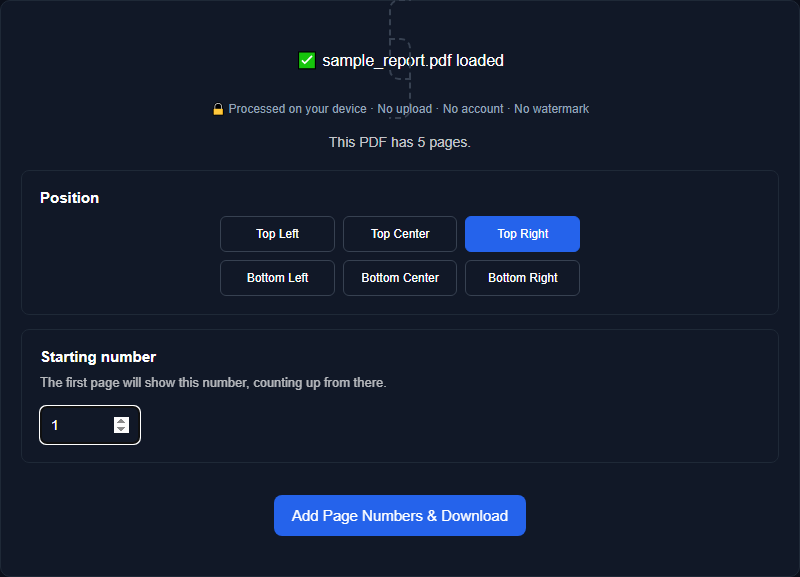
Starting number and format
Not every document should start counting at "1" on its first physical page. A report with a cover page and table of contents often wants numbering to begin on the first content page, with the front matter left unnumbered or numbered separately with roman numerals. A flexible page-numbering tool lets you set the starting number and skip a set number of pages at the front, rather than forcing sequential numbering from page one no matter what.
Check the document after numbering
Numbering adds content without rewriting the existing text or images, but it still creates a modified PDF. A number may cover content, appear in the wrong orientation, or invalidate an existing digital signature. Interactive elements, archival requirements, and accessibility should also be checked when they matter.
Example: one sequence for a merged manuscript
A 60-page manuscript gets assembled by merging three separately written sections into one PDF, and none of the three had consistent page numbering to begin with. Rather than reopening each original document, fixing its numbering, re-exporting, and merging again, stamping numbers onto the already-merged 60-page file directly produces a single, correctly and continuously numbered document in one pass.
Questions before numbering a PDF
Can I start numbering from a page other than the first one? Yes, most tools let you set a starting page and starting number, so a cover page or table of contents can stay unnumbered.
Can page numbers overlap existing content? Yes. Preview every page range, especially when margins, page sizes, or orientations vary.
Does it work on scanned PDFs? Usually. The number is added over the page whether its content is an image or selectable text, subject to file permissions and the tool's limits.
Add page numbers to your PDF
Orisod's page numbering tool stamps sequential numbers onto any PDF, with control over placement and starting page, entirely in your browser, with nothing uploaded to a server.
Add page numbers →Before sharing the numbered copy, compare the displayed numbers with the PDF viewer's page count and inspect the first, last, rotated, and unusually sized pages.