 Orisod
Images often dominate PDF size, but they are not the only cause
Plain text is usually compact, while scans and photographs frequently make PDFs large. Embedded fonts, attachments, forms, layers, duplicated resources, portfolios and multimedia can also contribute. Inspect the document before deleting pages or reducing content; the right approach depends on which objects consume the space.
Where those oversized images come from
- Scanned documents. A high-DPI scan records each page as a large image, sometimes with more detail than a particular screen or routine print workflow requires. Small text, handwriting and future uses may still benefit from that detail.
- Phone-photographed pages. A modern phone camera produces multi-megapixel images, and when several of those get combined into a PDF, the file size adds up fast.
- Uncompressed graphics. Charts, diagrams, or photos pasted into a document at full resolution rather than sized appropriately for the page.
What compression actually does inside a PDF
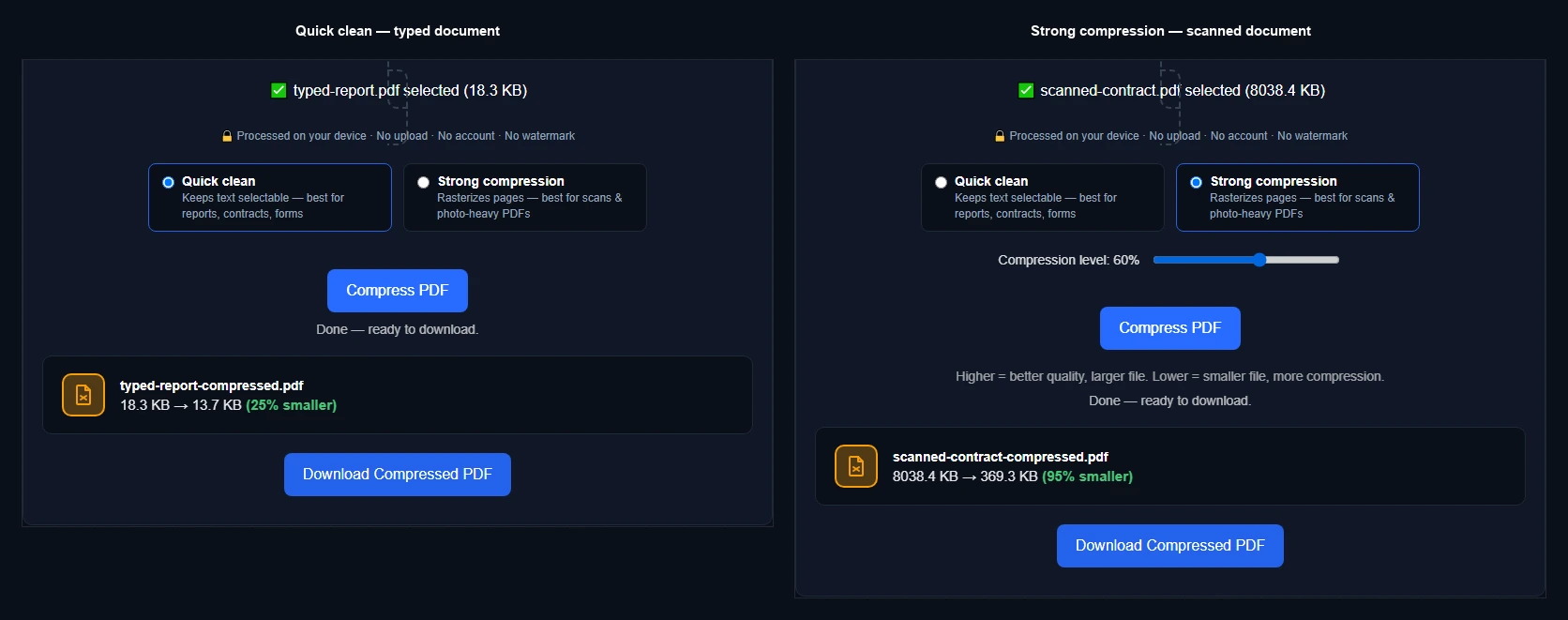
Orisod offers two modes with different tradeoffs. Quick clean rewrites the PDF without intentionally rasterizing pages. It may preserve selectable text and vector content, but rewriting is still a modification and should not be described as leaving every object completely untouched. Forms, annotations, signatures, links, tags, attachments, encryption, and uncommon PDF features require verification. Strong compression rasterizes pages and encodes them as images. This can reduce scanned or photographic PDFs, but it discards selectable text layers, vectors, links, forms, annotations, tags, and digital signatures. File size can also increase for simple text or already optimized pages. A scan may still contain an OCR layer, annotations, links, signatures, or metadata worth preserving. Strong compression therefore has a real cost even when the visible page began as an image. Use it only when a rasterized derivative satisfies the document's purpose, and keep the original.
What “without losing quality” can and cannot mean
Quick clean may avoid deliberate image recompression, but a successful visual comparison is still necessary after the PDF is rewritten. Strong compression is lossy by design. Whether its changes are noticeable depends on page content, output resolution, encoder, display, print size, zoom, and later processing. A 300-DPI scan may contain more pixels than one screen workflow needs, but small type, line art, handwriting, barcodes, stamps, and future printing can benefit from that detail. Downsampling removes information permanently, even when the first preview looks acceptable.
What compression won't fix
Compression is not redaction or document cleanup. Removing pages changes scope, while hidden objects, metadata, attachments, and sensitive layers may remain unless handled deliberately. Never delete material from a record merely to meet a file-size limit without confirming retention requirements.
Choose a target based on the document
The reduction depends on the PDF and the selected mode. Strong compression can greatly reduce a scan or photo-heavy file by rasterizing its pages. Quick clean often saves less on a well-formed text document because there is less redundant structure to remove, but it avoids intentional page rasterization and therefore has a better chance of retaining selectable text. Neither result should be accepted without checking the features that matter.
Two measured files, not a universal promise
In one Orisod test, a 7.9 MB scanned contract became 370 KB with Strong compression. That 95% result is a benchmark for that file and setting, not a general expectation. “Looked similar in one normal-size review” is more accurate than “identical”; inspect small text, signatures, stamps, gradients, and print output. In another test, one 18.3 KB typed report became 13.7 KB with Quick clean. Treat the percentage as file-specific. If the tool retains the original when an attempted output is larger, state that behavior precisely and still verify the downloaded file rather than assuming all structures and features survived.
Verify the compressed copy
Will text be affected? Strong compression removes the PDF text layer by rasterizing pages. Quick clean is designed to avoid rasterization, but search, copy, fonts, encoding, tags, and forms should be tested in the rewritten file.
Can an already compressed PDF be compressed again? Yes, but lossy rasterization can accumulate damage and may not reduce size. Work from the best source and keep it.
Does compression remove pages? These modes should not, but Strong compression changes far more than image resolution: it replaces each page's interactive and structural content with a raster image. Confirm page count and functionality.
Compress your PDF now
Orisod's PDF compressor provides Quick clean for a non-rasterizing rewrite and Strong compression for an image-based derivative. Preserve the original and compare page count, text, forms, links, signatures, accessibility, and visual detail after download.
Compress a PDF →Choose the mode according to the PDF's contents and the features that must survive. The smallest acceptable file is not necessarily the smallest possible one; it is the version that meets the size limit without sacrificing required legibility, structure, validity, or accessibility.