 Orisod
The two different reasons people split a PDF
One workflow extracts a range, such as pages 12 through 18. Another divides a batch into several documents at chosen boundaries. Confirm what the tool supports: some splitters extract one range or create one file per page but do not accept several arbitrary break points in a single operation.
Extracting a range
A range export creates a new PDF from selected pages. It is useful for a chapter or exhibit, but it does not automatically prove that excluded information is absent from every object in the output. Review attachments, metadata, links, comments, layers, and form data when confidentiality matters. It also keeps sensitive or irrelevant sections of the original out of what you're sharing entirely, rather than relying on someone to simply skip past them.
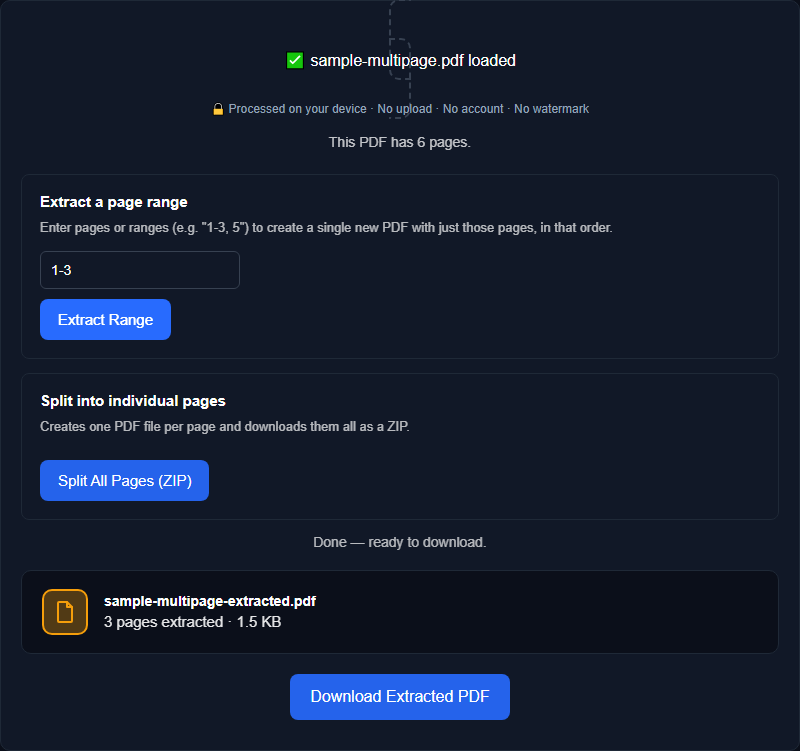
Splitting into multiple standalone files
A scanned batch can be separated into smaller PDFs, but check whether the tool creates individual pages, one selected range, or multiple custom ranges. Each output should be opened to confirm that no page is missing, duplicated, rotated, or assigned to the wrong document.
What stays intact when you split
A page-copying splitter can avoid deliberate rasterization and image recompression, so visual page content may remain unchanged. Exact preservation is not guaranteed. Rewriting the PDF can affect resource references, forms, annotations, links, bookmarks, tags, optional content, attachments, encryption, and digital signatures. Signed documents require special care because creating a new file can invalidate or remove signature coverage.
How to figure out where to split
Use thumbnails and visible page labels to identify boundaries, but remember that printed page numbers may differ from the PDF viewer's page index. Check fronts and backs, blank separators, rotated pages, and attachments. After splitting, compare each output with the source rather than relying only on the setup preview.
Splitting vs. deleting pages
Splitting is different from simply deleting unwanted pages from a single document: deleting removes pages and leaves you with one smaller file, while splitting produces multiple output files from one input. If what you want is to drop a few blank or unnecessary pages and keep everything else as a single document, that's a page-organizing task rather than a split.
Separate a scanned batch without losing context
Suppose a 20-page scan contains a signed contract, an invoice, and three groups of receipts. Record the page boundaries, determine which pages belong together, and preserve any cover sheets that provide context. If the contract includes a digital signature rather than a photographed handwritten signature, splitting may affect its validity. Splitting at the right page boundaries (contract pages 1-8, invoice pages 9-10, and three receipts on pages 11 through 20) turns that single scan into five properly separated files, each one ready to file, forward, or archive on its own.
Verify each output file
Does splitting reduce visual quality? Direct page copying can avoid recompression, but implementation details matter. Compare text, images, transparency, annotations, and page dimensions with the source.
Can I create several parts at once? Only if the selected tool supports multiple custom ranges. Orisod's current interface should be described according to its actual options, such as extracting a range or separating pages.
Does it work on scans and text PDFs? Both can be divided by page, but searchable text, OCR layers, forms, and annotations may require separate verification.
Split your PDF now
Orisod's PDF splitter can extract a page range or separate pages in your browser. Open every downloaded file and verify page order, visual quality, links, forms, and signatures before deleting the source.
Split a PDF →Splitting makes a large PDF easier to distribute only when each result is complete and correctly scoped. Keep the original, verify every output, and use a redaction workflow rather than page extraction when hidden or embedded sensitive information must be removed.