 Orisod
What a border changes visually
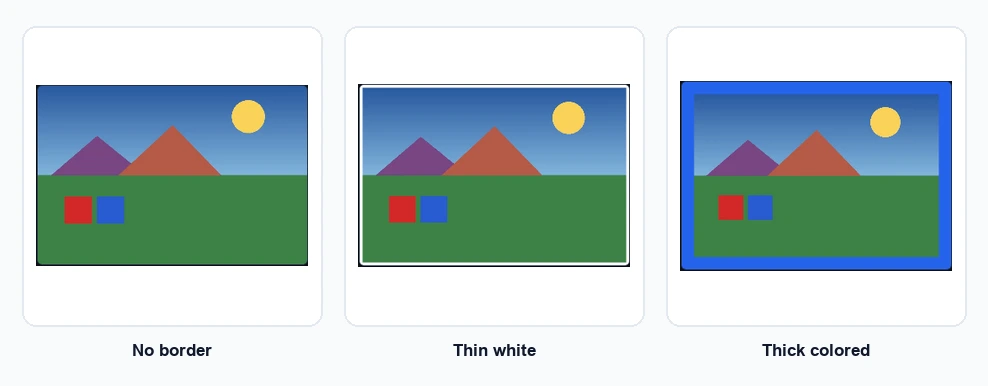
A solid strip creates separation between the photograph and a webpage, printed sheet, or social feed. This is most noticeable when the image edge resembles the surrounding background. A thin neutral border provides separation without becoming a major element of the composition.
Common reasons to add a border
- Preparing a photo for print: a white or colored border (sometimes called a "mat" effect) is a classic finishing touch for framed prints, greeting cards, and photo books.
- Making a photo stand out in a feed: a border creates visual separation from a busy background of other posts, especially useful for consistent branding across a series of images.
- Adding space around a tight composition. A border can separate the subject from the outer edge, although it cannot restore image content removed by cropping.
- Creating a consistent set: applying the same border style across a batch of photos (a product catalog, a portfolio) gives them a cohesive, intentional look as a group.
Choose color and thickness at the final display size
White, black, and gray are predictable starting points, but the surrounding page and the photograph determine the result. Judge thickness at the size where people will see the image: a 20-pixel border feels very different on a thumbnail and on a large print. Check contrast as well, especially when the border is part of a branded set.
A border is not always the same as a decorative frame
People often use both terms interchangeably. Here, border means a uniform band of color added around the image; frame may also describe textures, ornaments, or a physical frame. A simple border is easier to reproduce consistently across web, social, and print assets.
How to add one online
Select the photograph, choose a color and thickness, and export a new file. An embedded border travels with that copy, unlike a CSS border that belongs only to a webpage. Check the output format, dimensions, and any file-size limit imposed by the destination.
Use one rule across a set
For a catalog, portfolio, or post series, define the border as part of the system: use the same color and calculate thickness consistently. If source images have different dimensions, a percentage-based rule may produce a more even visual weight than one fixed pixel value.
Questions before adding a photo border
Does adding a border change the photo's aspect ratio? Yes. A border adds pixels around the existing image, so the final dimensions (and often the ratio) change slightly depending on the border thickness. Account for this if the bordered version needs to fit an exact size elsewhere.
Will quality change? The border operation need not resize the existing pixels, but exporting can re-encode the image and may remove metadata. Keep the source and inspect the new file, especially when saving as JPEG.
Can I use a border on a photo I'll also crop or resize? Yes, but it's usually cleanest to crop and resize first, then add the border last; that way it ends up the intended thickness relative to the final image size, rather than getting distorted by a later resize.
Add a border to your photo
Orisod's border tool lets you pick a color and thickness and export instantly. Everything is processed locally in your browser, with nothing uploaded to a server.
Add a border to an image →Use a border when it improves separation or consistency, not simply because the option exists. Confirm the final size before publishing or printing.