 Orisod
Where rounded images are commonly used
- Profile photos: preparing the crop yourself gives you more control than leaving it to a platform's automatic framing.
- App icons: stores and operating systems often display icons inside a rounded square.
- Cards and thumbnails: a modest corner radius can help an image match the surrounding interface.
- Printed pieces: circular portraits and softened corners also work well on badges, cards, and photo layouts.
First decide whether you need CSS or a new image file
For an image that will appear only on a website, CSS may be enough. The border-radius property changes how the browser displays the image, but it does not alter the file. Open that same JPG outside the webpage and it will still have square corners.
Create a new rounded file when the shape needs to travel with the image. Profile pictures, email attachments, app assets, and print projects cannot rely on a webpage's CSS.
Transparent corners require PNG
A permanently rounded image is made by turning the area outside the chosen shape into transparent pixels. PNG supports that transparency; JPG does not.
If you save the result as JPG, the corner areas must be filled with a color, usually white. That may look convincing on a white page, but the rectangle becomes visible as soon as the image sits on a darker or colored background.
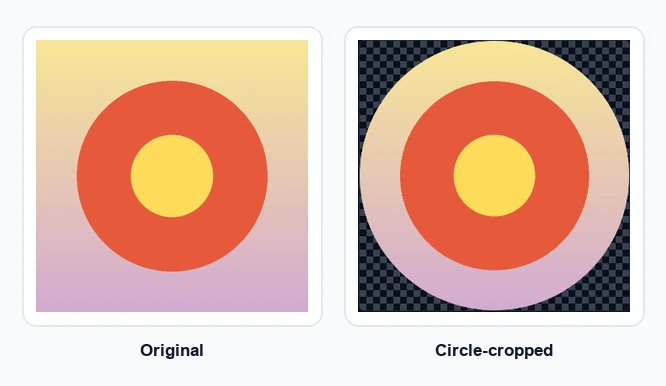
Circle crop or rounded rectangle?
Choose a circle for avatars, headshots, and other images where the subject belongs in the center. Everything outside the circular boundary will be removed, so check the framing before exporting.
A rounded rectangle keeps more of the original composition. It is usually the better fit for landscape photos, product thumbnails, cards, and icons that still need a rectangular footprint.
How much should you round the corners?
Start with the image's final size and purpose. A small radius softens the edges without changing the overall shape, which works well for large photos and content cards. A larger radius is more noticeable and often suits compact icons or square thumbnails.
Preview the image against a background similar to the one where it will be used. This catches two common problems early: a radius that feels too strong and a crop that places the subject too close to an edge.
Create the rounded image
Open the image in a rounding tool, choose a circular crop or set the corner radius, then export the result as PNG. The transparency becomes part of the downloaded file, so the shape remains intact when you upload, email, or print it.
Before you export
Can the source image be a JPG? Yes. You can start with JPG, PNG, or another supported image format. Export the rounded result as PNG so the corners can remain transparent.
Will the PNG work on different backgrounds? Yes. Transparent corners reveal the color or image behind them instead of adding a visible white box.
Does a circular crop use the same technique? Yes. Both options apply a transparency mask; only the shape of that mask changes.
Round the corners or crop an image into a circle
Choose the shape, check the preview, and export a transparent PNG. Orisod processes the image in your browser without uploading it.
Round image corners →Use CSS when the rounded appearance belongs to one webpage. Export a transparent PNG when the shape needs to stay with the image wherever it goes.