 Orisod
How HTML-to-PDF conversion actually works
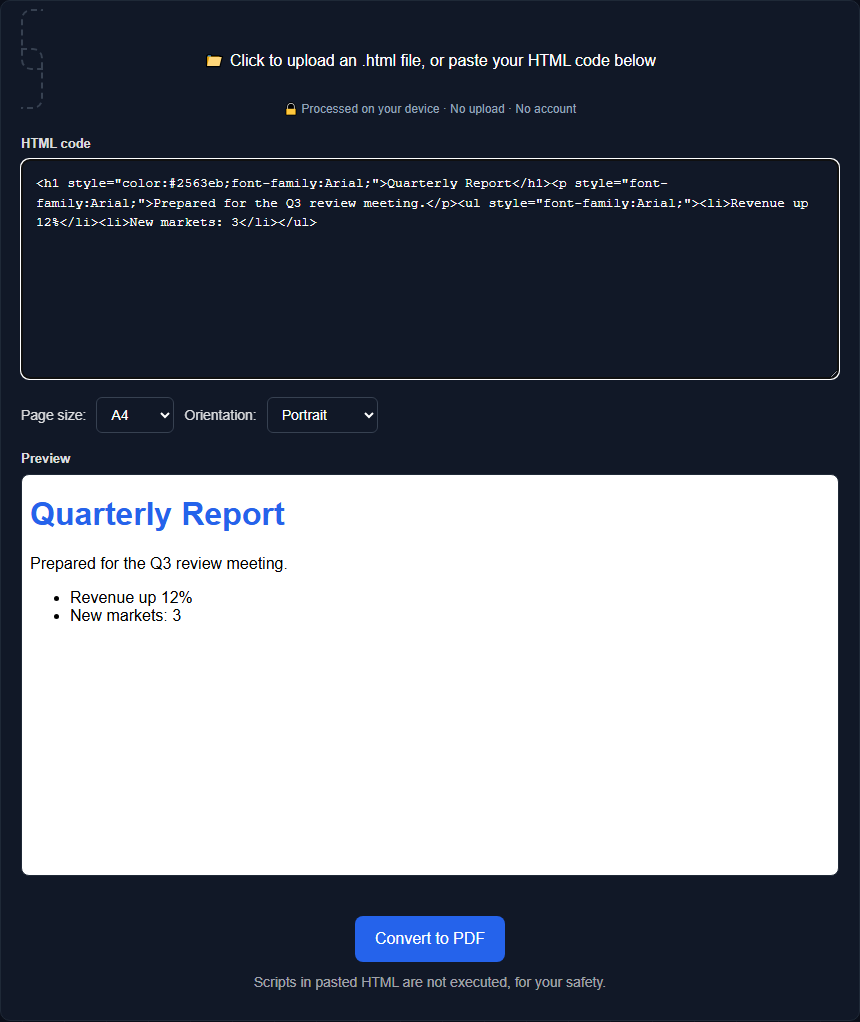
Orisod renders supported HTML and CSS in a browser context, captures the visual result, and places that raster output into PDF pages. It does not preserve the DOM as structured PDF content. The exported words may therefore be pixels rather than selectable text, and accessibility, links, forms, scripts, and semantic headings do not automatically survive.
What it can and can't do with a live website
This tool accepts HTML content rather than a URL. Copying only a page's source is not equivalent to loading the live site: relative URLs, stylesheets, scripts, authenticated data, shadow DOM, frames, fonts, and dynamically generated content may be absent. Use a self-contained document with authorized local or embedded resources when a reproducible result matters.
Why some images don't show up
Remote images can fail because of CORS, content-security policy, blocked mixed content, authentication, expiring URLs, network errors, or capture timing. Relative paths copied from another site also lose their original base URL. Embed authorized assets or use data URLs when practical, and wait for resources and fonts to finish loading before export.
How pagination works for long content
Orisod's current capture method slices long rendered content at fixed page heights. The cut does not understand paragraphs, table rows, images, or CSS fragmentation rules, so any element can be split. Long pages can also hit browser canvas or memory limits. Inspect every page break and adjust spacing or input content when necessary.
Choosing page size and orientation
A4 and Letter cover most standard documents; Legal is common for contracts and certain forms. Orientation matters more than it might seem: a wide table or a landscape-oriented design will look cramped and awkward forced into a tall portrait page, while portrait suits regular text content. Getting these settings right before converting saves a re-download later.
Prepare a self-contained invoice
For an HTML invoice, embed the authorized logo, include required CSS and fonts, set the intended paper size, and verify totals before rendering. Compare the PDF with the preview, paying attention to page breaks, clipped table rows, missing images, and text selection. Keep the HTML and underlying invoice data as the source.
Verify more than the preview
Can I convert a live site by URL? Not with this tool. Copying source alone may produce an incomplete result because a live page depends on external and dynamic resources.
Why are images missing? CORS is one possibility; also check relative paths, authentication, CSP, mixed content, loading failures, and capture timing.
Can content be cut at a page break? Yes. Fixed-height slicing can split text, images, and rows regardless of natural spacing. Review every generated page.
Convert your HTML to a PDF
Orisod's HTML to PDF tool previews supported HTML and creates a rasterized, paginated PDF in your browser. Check resources, fonts, page breaks, links, text selection, and accessibility against your requirements.
HTML to PDF →This workflow suits self-contained HTML whose rasterized appearance has been reviewed. When searchable text, tagged accessibility, active links, CSS print rules, or layout-aware pagination matter, use an HTML-to-PDF engine designed to preserve those features.