 Orisod
Why JPG isn't always accepted where PDF is expected
Expense systems, school portals, applications, and other document workflows often restrict uploads by file type. A photographed page may contain the required information, but the form can still reject it because JPG is not on its accepted-format list.
What the conversion creates
The converter places the image on a page inside a PDF file. It opens in a PDF viewer and can be submitted where that format is required, but the page still contains an image. Text selection and search require OCR or another text-recognition step.
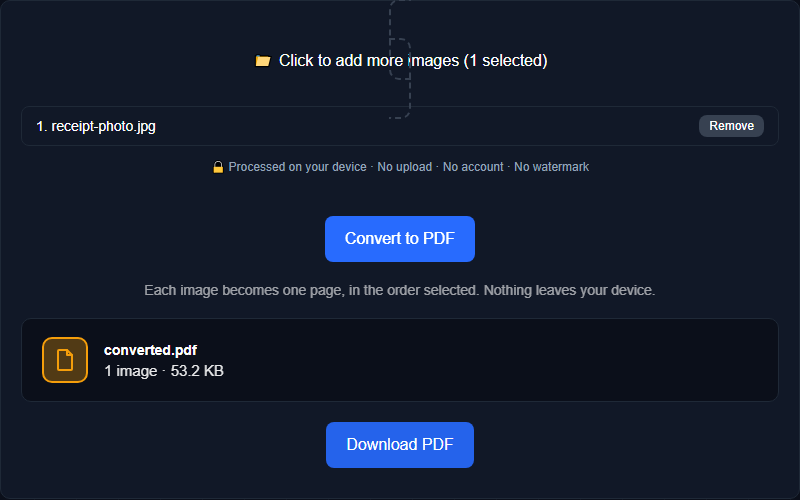
Example: submitting a photographed form
Photograph the page in even light, check that every edge and line of text is visible, then convert the image when the recipient requires PDF. Conversion solves the format requirement; it does not correct blur, glare, missing corners, or an unreadable original.
One image per PDF or several pages in one file
A single-image converter can create one PDF for each photograph. To submit several photographed pages as one document, use an images-to-PDF workflow that lets you order the pages before export.
What to check before you convert
- Orientation. A sideways photo stays sideways in the resulting PDF unless you rotate it first. The conversion doesn't guess which way is "up."
- Page size behavior. Some converters fit the image onto a standard page size (like Letter or A4) with margins around it; others size the PDF page exactly to the image's own dimensions. Which one you want depends on whether the file needs to print cleanly on a standard printer or needs to exist as a digital PDF.
- Image quality. A blurry or poorly lit photo will look exactly as blurry inside the PDF. Conversion doesn't sharpen or clean up the source image.
Does the file size change much?
File size depends on whether the converter embeds the JPG directly, rescales it, or recompresses it. A simple one-page PDF may remain close to the source size, while higher resolution, page settings, and additional processing can change the result.
Does it print the same way?
The PDF provides a defined page for printing, but output still depends on page size, margins, orientation, scaling, and printer settings. Preview the page before printing, especially when the photographed document must retain its full edges.
Questions about image-based PDFs
Can conversion reduce quality? It depends on the implementation. Direct embedding can preserve the JPG data, while resizing or recompression may change quality.
Can I convert more than one JPG into separate PDFs at once? Yes, batch conversion can produce one standalone PDF per image if that's what you need, rather than combining them.
Will the text be editable or searchable? Not from conversion alone. The page remains an image unless OCR is applied.
What if I have several pages? Combine the photographs into one multi-page PDF and arrange them in the correct order before export.
Convert your JPG to PDF now
Place a JPG on a PDF page and download the result. Orisod processes the photograph locally in your browser.
Convert JPG to PDF →Open the finished PDF and inspect legibility, orientation, and page boundaries before submitting it. A valid file format cannot compensate for an unreadable photograph.