 Orisod
Why you'd want to merge PDFs in the first place
Merging comes up constantly in ordinary situations: combining scanned pages of a signed document into one file instead of five, assembling an expense report from individual invoice PDFs, putting together chapters or sections of a longer document that were written or exported separately, or bundling supporting documents for a single application or submission. Almost anywhere a form or a person asks for "one PDF" instead of several attachments, merging is the step that gets you there.
What actually happens when PDFs are merged
A page-level merger can copy PDF page objects into a new document without deliberately rasterizing them. Selectable text and vector graphics may therefore remain intact. Exact preservation is not guaranteed: resource conflicts, unsupported features, annotations, links, forms, tags, portfolios, encryption, and digital signatures can behave differently when files are rewritten or combined.
A typical example: assembling an expense report
Suppose a finance system accepts one attachment for six receipts. Arrange the files according to the reporting rule, merge them, and open the output to confirm that every receipt is present and readable. The system may also enforce file-size, page-count, encryption, or archival-format requirements, so one combined PDF is not automatically a valid submission.
Common merging mistakes
- Screenshotting and reprinting pages. Some people combine PDFs by taking screenshots of each page and building a new PDF from the images. This destroys the ability to select or search text, and quietly reduces image quality.
- Getting the page order wrong. The order you add files determines the final page order, so it's worth double-checking before merging, especially with several similarly-named files.
- Ignoring passwords and permissions. The owner password, document restrictions, or encryption method may prevent merging. Only remove protection when authorized to do so.
What if my PDFs are scanned documents?
A scanned PDF may contain page images, an OCR text layer, or both. A page-level merge can preserve that content, but an implementation that rewrites or rasterizes pages may alter it. OCR is not required merely to combine files, although it may be useful when the final document must be searchable or accessible.
How to merge PDFs online
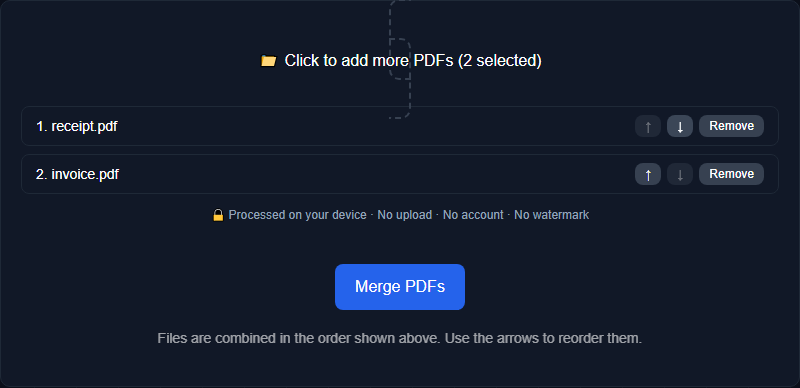
Select the PDFs, arrange them, and generate the combined copy. Then inspect more than the thumbnails: confirm page boundaries, rotation, bookmarks, internal links, form fields, signatures, and accessibility when those features matter. Keep the source files until the merged document has passed that review.
What to inspect after merging
Does merging reduce visual quality? Direct page copying can avoid image recompression, but the outcome depends on the implementation and PDF features. Compare representative pages, especially those containing transparency, unusual fonts, annotations, or large images.
Can page sizes differ? A PDF can contain mixed dimensions and orientations, but printing and downstream systems may handle them inconsistently. Review scaling and paper selection before distribution.
How many files can be merged? Limits may come from the tool, browser memory, source complexity, total bytes, encryption, or the destination's upload rules. Page count alone does not predict resource use.
Do I need to remove blank or duplicate pages first? Not necessarily. You can merge as-is and clean up afterward with a page organizer tool if you spot anything to remove.
Merge your PDFs instantly
Orisod's PDF merger combines selected files in your chosen order within the browser. Open the downloaded copy and verify content, forms, links, signatures, and page sizes before replacing the originals.
Merge PDFs →Merging solves the one-file requirement only after the output has been checked. Preserve the sources, verify the combined document from first page to last, and treat signed or interactive PDFs with extra care.