 Orisod
Aspect ratio and dimensions solve different problems
Aspect ratio describes shape: 1:1 is square, whether the image is 600×600 or 800×800 pixels. Dimensions describe size. If a service requests 600×600 pixels, an 800×800 image has the correct ratio but the wrong dimensions. A physical requirement such as 2×2 inches also needs a resolution target before it can be translated into pixels.
When exact dimensions matter
- Passport and visa photos: requirements vary by country and application. Follow the current official specification, including image size, head position, background, and any stated tolerances.
- ID badges and access cards: the printing system usually expects one fixed pixel size and will stretch or crop unpredictably if you feed it anything else.
- Print lab templates: ordering a 4×6 print means the file needs to match that ratio and resolution, or the lab crops it for you in a way you didn't choose.
- Website and app assets: a hero image slot or a profile picture upload area often expects one fixed size, and anything else gets awkwardly stretched or cropped by the platform.
What happens when the dimensions are wrong
A receiving system may reject an incorrectly sized image, resize it, or crop it again. Automatic cropping can remove an important part of the frame, while stretching changes proportions. Preparing the required dimensions beforehand gives you control over the composition, although acceptance may still depend on other rules.
How to crop to an exact size
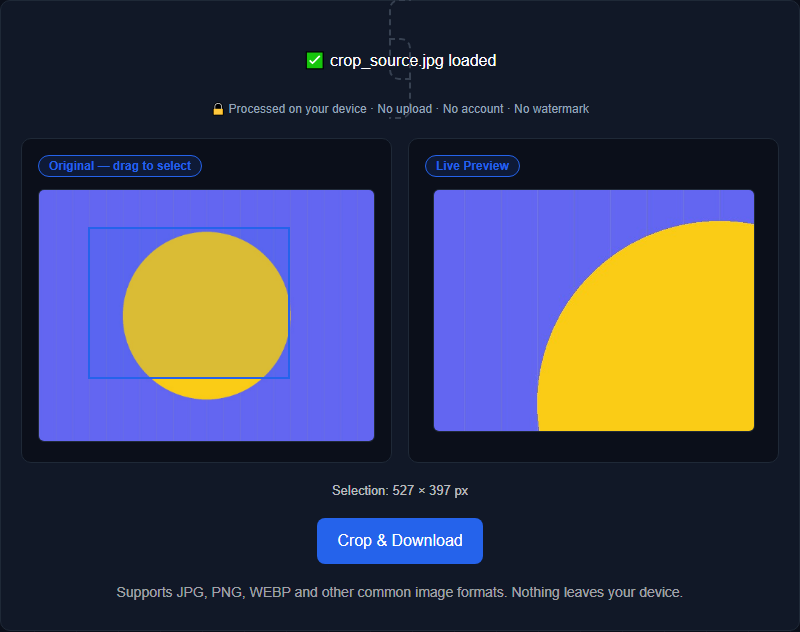
Enter the required width and height, then position the crop area over the part of the photo you want to keep. Check the output dimensions before downloading. If the tool displays the selection size while you drag, use that readout instead of estimating by eye.
Convert print size to pixels before cropping
Pixels and inches are not interchangeable without a resolution value. Multiply each dimension in inches by the requested pixels per inch: 2 inches at 300 pixels per inch equals 600 pixels. That makes a 2×2-inch target at that resolution 600×600 pixels. The size at which an image appears on your screen does not determine its print dimensions.
What to do when the source photo isn't the same shape as the target
Often the photo you have doesn't naturally match the ratio you need: a wide landscape shot when you need a square, or a portrait shot when you need a wide banner. In that case, cropping necessarily means losing some of the original frame; there's no way around it without distorting the image. The only real decision is what to keep. Position the crop box over the part of the photo that matters most (a face, a product, the focal point) rather than defaulting to a center crop, which can as easily cut off exactly what you wanted kept.
Questions about exact-size cropping
What if my photo is smaller than the exact size I need? Cropping only removes pixels; it can't add detail that isn't there. If your source photo is too small for the target size, you'd need to upscale it first, which comes with its own quality trade-offs, or start from a higher-resolution original.
Does cropping to an exact size distort the photo? Not if you crop rather than resize-to-fit. Cropping removes parts of the image while keeping everything else at its original proportions; only stretching an image to fill a shape it doesn't naturally match causes distortion.
Can I crop to an exact size and keep it centered on a specific part of the photo? Yes. A good crop tool lets you position the crop box freely before locking the dimensions, so you choose exactly what stays in frame rather than always cropping from the center.
Crop to an exact size in seconds
Orisod's crop tool lets you drag to select any area and set precise output dimensions. Everything is processed locally in your browser, with nothing uploaded to a server.
Crop an image →Matching the requested dimensions prevents avoidable resizing or cropping. For regulated photos and platform uploads, check the remaining requirements as well; dimensions alone do not guarantee acceptance.