 Orisod
Why the file won't open
WebP support is broad in current browsers, but it still varies among operating-system versions, editors, viewers, and embedded applications. A program without a WebP decoder cannot interpret the file. Try an updated browser or another known-compatible application first; if several current tools reject it, check whether the download is complete and whether the extension matches the actual file type.
Where you're most likely to run into this
- Saving an image from a website: many sites now serve WebP by default, so a routine "save image" can hand you a format your default photo viewer doesn't expect.
- Receiving a WebP file from someone else: a screenshot tool, a messaging app, or another person's browser may have saved or forwarded it in WebP without either of you choosing that on purpose.
- Opening it in older design or editing software: some image editors added WebP support later than browsers did, so an outdated version may still lack it.
Option one: update or switch your viewer
Start by updating the application or operating system and checking its documented WebP support. A codec or extension may help on some Windows configurations, while recent versions of macOS and many editors include native decoding. Exact behavior depends on the release and application. Native support lets you retain the original file and avoids an unnecessary conversion.
Option two: make a more compatible copy
When software cannot be updated, export a PNG or JPG copy. PNG supports transparency and lossless pixels, although it can be much larger. JPG is often smaller for photographs but is lossy and cannot preserve transparency. Animated WebP, color profiles, HDR data, and metadata may not survive an ordinary still-image conversion.
Which option makes more sense
If it's a one-off image you need to open right now, converting is faster and doesn't require installing anything. If you're routinely receiving or working with WebP files, updating your software to support the format natively saves you from repeating the conversion every time. Most people end up doing a bit of both: converting when they urgently need a specific file to open, and eventually updating their software once the friction becomes annoying enough.
What about opening WebP on a phone?
Current Android and iOS browsers generally support WebP, but handling in gallery, Files, messaging, and third-party apps can differ by system version. If the same file opens on one device and not another, application support is the likely cause. Test the exact file in an updated browser before converting it.
Converting WebP to PNG
PNG is supported by a wider range of older image applications, though no format opens in literally every environment. A standard conversion can preserve ordinary transparency, but verify edges, animation, color, and dimensions in the exported file.
Diagnose the file before converting
Is the file corrupt? Lack of decoder support is common, but corruption, a partial download, or an incorrect extension is also possible. Test it in more than one current WebP-compatible application.
Will PNG preserve transparency? It can preserve ordinary alpha transparency, provided the converter handles it correctly. JPG cannot. Animated WebP requires a destination and workflow that support multiple frames.
Why did I get a WebP file when I didn't ask for one? Many websites now serve images as WebP by default for performance reasons, so a normal "save image" from a browser increasingly hands you a WebP file whether you intended that or not.
Convert your WebP file now
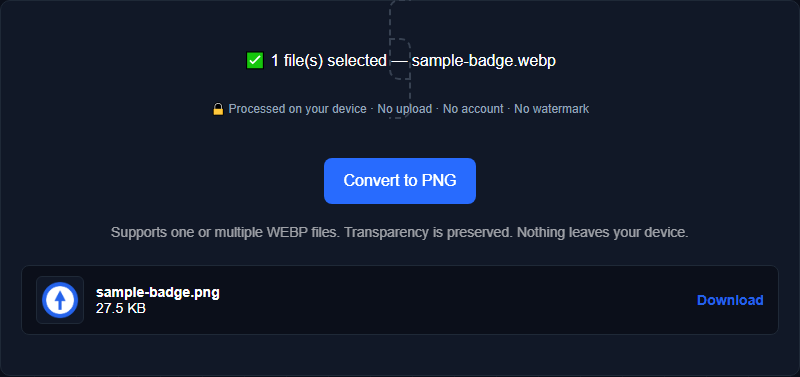
Orisod's WebP to PNG converter processes the file in your browser and creates a PNG for broader compatibility. Check transparency, color, dimensions, and animation requirements before replacing the original.
Convert WebP to PNG →Keep the WebP original when possible. Updating the viewer preserves the source as-is; creating a PNG or JPG copy is useful when compatibility matters more than WebP's size or features.