 Orisod
What is a HEIC file?
HEIC is a common filename extension for images stored in a HEIF container, often encoded with HEVC. It can store a high-quality photograph efficiently and can also carry metadata, auxiliary images, depth information, and image sequences. The size advantage over JPEG varies by photo and encoder; it is not a fixed one-half reduction.
Why iPhones use the High Efficiency setting
Apple introduced HEIF capture with iOS 11 and uses it under the High Efficiency camera setting on supported devices. Efficient storage is one benefit, and the container can preserve information that a single JPEG cannot. Export and transfer behavior can vary by device and settings, so a photo stored as HEIC may sometimes be shared in another format automatically.
Why a destination may reject HEIC
Support depends on the operating system, installed codecs, application, and upload policy. An unsupported-format message often means the destination cannot decode or accept HEIC, although file damage is another possibility. Confirm that the original opens correctly before assuming compatibility is the only issue.
Two ways to fix it
For future captures, choose a more compatible camera format when the additional storage is acceptable. For files already stored as HEIC, make JPG copies only when a destination requires them.
- Change your iPhone's camera setting. Go to Settings → Camera → Formats, and switch from "High Efficiency" to "Most Compatible." New photos will save directly as JPG going forward. This doesn't touch anything you've already taken, and JPG files will take up a bit more storage on your phone.
- Convert your existing HEIC photos to JPG. For photos already sitting in your Camera Roll or already sent to you, the setting above won't help; you need to convert the files themselves. This is the faster fix for a one-off photo or a batch you need to send somewhere right now.
How to convert HEIC to JPG in under a minute
A compatible browser-based converter can decode the HEIC image and create a JPEG copy without a desktop editor. After conversion, verify orientation, dimensions, color, metadata, background, and file size. JPEG is widely accepted, but no format is supported by every device or upload form.
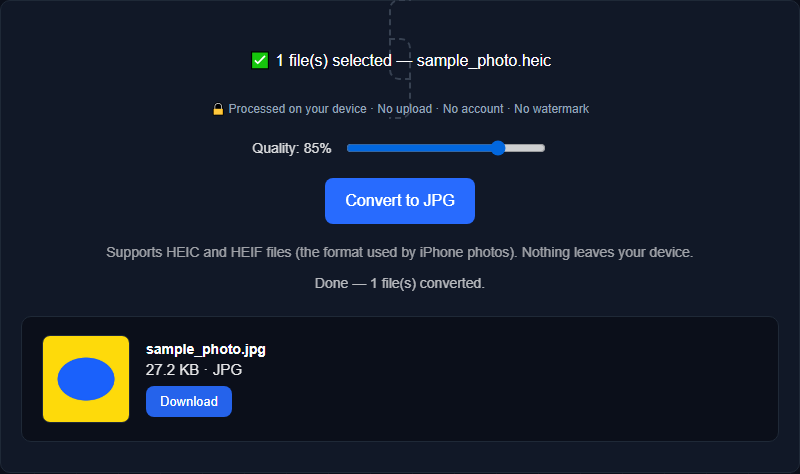
What can change when HEIC becomes JPG
JPEG conversion uses another lossy encode, so artifacts can appear even when they are subtle at normal viewing size. A single JPG cannot preserve every HEIF feature, such as an image sequence, depth data, HDR information, auxiliary images, or transparency. Metadata may also be removed. Keep the HEIC original and inspect the JPG at the size required by its destination.
Questions before converting HEIC to JPG
Can I convert a JPG back into HEIC? Technically yes, but there's rarely a reason to. HEIC's main advantage is smaller file size, and once a photo has already been saved as JPG, converting to HEIC won't recover any of the detail that was lost in the original JPG compression.
Is HEIC a bad format? No. It offers useful storage and container features, but compatibility is uneven across workflows. Use JPG when the receiving system specifically accepts it and preserve HEIC as the source.
Will this work with a batch of photos, not just one? Yes. You can convert several HEIC photos in one go rather than doing them one at a time, which matters if you're exporting an entire Camera Roll folder.
Convert your HEIC photos now
Orisod's HEIC to JPG converter runs entirely in your browser. Your photos are never uploaded to a server, so you can convert Camera Roll exports as privately as you'd like. Works with single photos or several at once.
Convert HEIC to JPG →Convert when compatibility requires it, then review the JPG rather than assuming the format change was neutral. Retaining the HEIC source protects the information and quality that the delivery copy may not contain.