 Orisod
Why sampling beats guessing
Lighting, surrounding colors, and display settings affect how a shade appears. Two blues that look alike may contain different RGB values, while the same RGB value can look different on two displays. Reading the pixel removes guesswork from the file itself; color management still matters when the result moves between devices or into print.
How HEX, RGB, and HSL describe a color
HEX and RGB can express the same red, green, and blue channel values in different notation: #2563eb corresponds to rgb(37, 99, 235). HSL represents that RGB color through hue, saturation, and lightness. Converted HSL values are often rounded, so converting back may differ by a channel value. Choose the format required by your design tool or codebase.
You do not need a full image editor
Before browser-based tools existed, getting a color code out of an image meant opening it in a full image editor, using an eyedropper tool buried in a toolbar, and reading the value off a color picker dialog, assuming you had that kind of software installed at all. It works, but it's a lot of steps for something that should take five seconds, and it's simply not an option if you're on a phone or a computer without design software.
Select a pixel and read its value
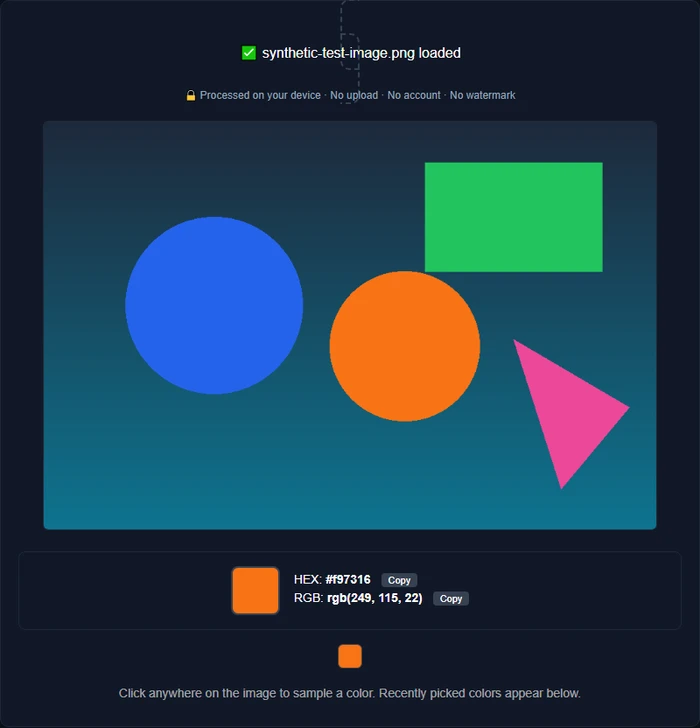
Open the image in a browser-based picker and select the point you want to inspect. The tool reads the decoded pixel and reports its HEX, RGB, and HSL representations. With local browser processing, the image can remain on your device.
What to do with the code once you have it
Copy the value into CSS, a design tool, or a working palette. For an established brand, verify it against the official style guide when one exists: a screenshot or compressed logo may not preserve the original brand value. Printed output also depends on color profiles, inks, paper, and the RGB-to-CMYK conversion.
Common situations where you'll need this
- A client sends over an old logo file and you need to pull their exact brand blue to use in a new design, with no style guide to reference.
- You spot a background color on a website or in a screenshot that you want to reuse in your own project.
- You're recreating a color scheme from a photo (a product shot, a piece of art, a room you're decorating) and want the palette to be precise rather than approximate.
- You're debugging a CSS issue and need to confirm whether two elements that look the same color share the exact same value.
Sampling provides a reproducible starting value. If the source contains antialiasing, texture, shadows, or gradients, inspect several nearby pixels before deciding which value represents the color you need.
Compression, edges, and color profiles affect the sample
JPEG compression can alter pixel values, particularly around sharp edges and gradients. Antialiasing can also blend a solid color with its background. Sample a flat area away from edges and use the least-compressed source available. An embedded color profile may further affect how software interprets and displays the values.
Questions about sampling image colors
Does this work with screenshots? Yes. Any image format your browser can display, including PNG, JPG, and WEBP screenshots, works the same way.
Can I get more than one color from the same image? Yes, you can click as many different pixels as you need, one at a time, without re-uploading anything.
Do I need design software installed? No. The whole process happens in the browser tool itself, so there's nothing to install.
Pick a color code from any image
Orisod's color picker runs entirely in your browser: upload or drag in any image, click a pixel, and get the exact HEX, RGB, and HSL values instantly. Nothing is uploaded to a server.
Pick a color from an image →A sampled pixel gives you a defensible value from the source file. Check neighboring pixels and the intended output medium before treating it as the final production color.